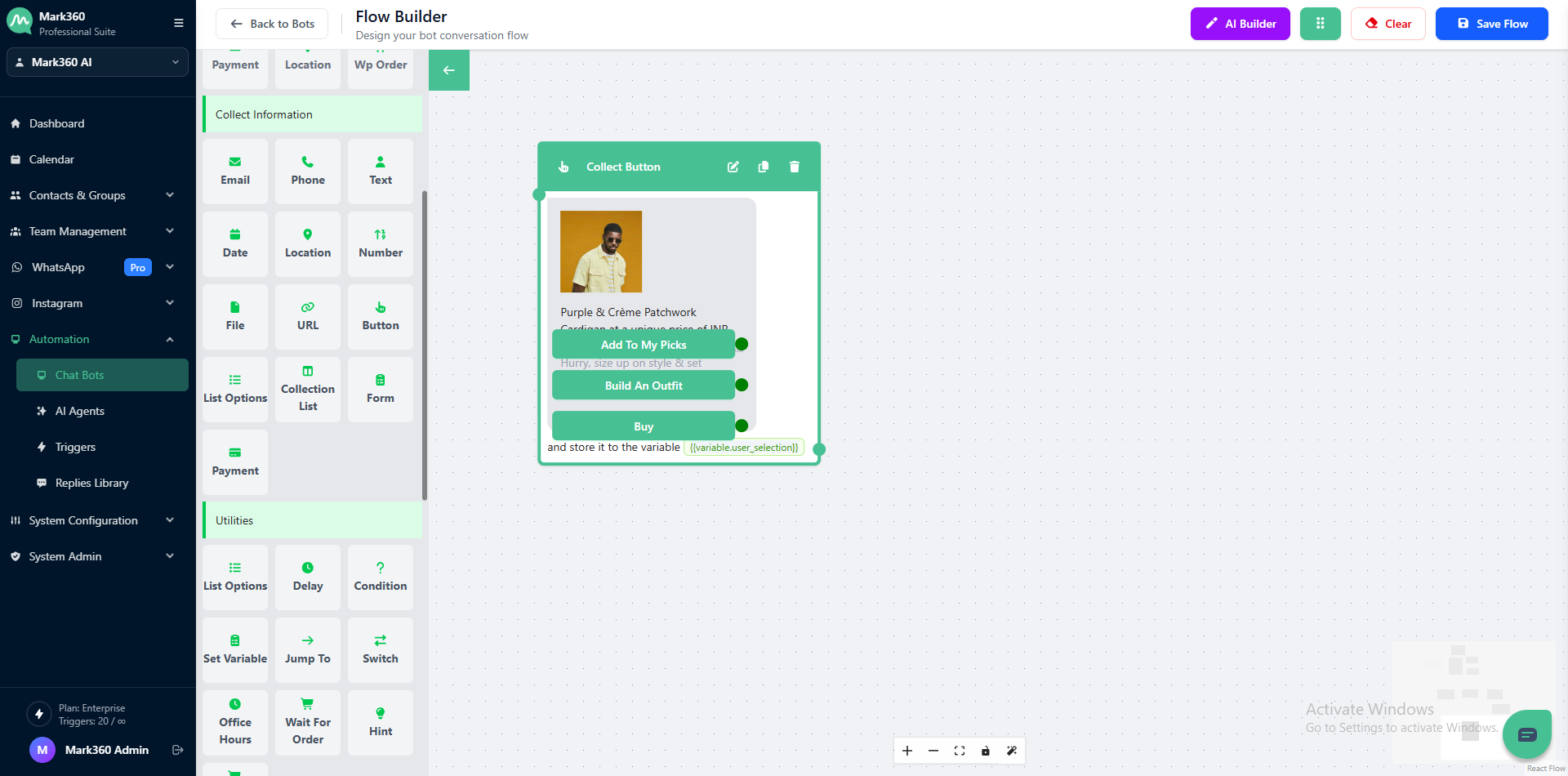
Collect Button
Boost customer interaction with the Collect Button Option card in Mark360.
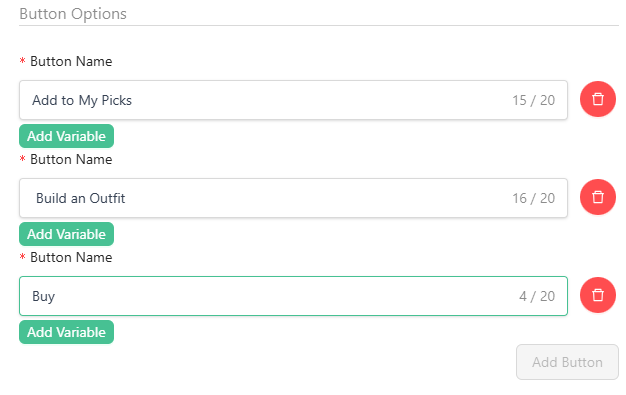
Offer quick action buttons like Add to My Picks, Build an Outfit, and Buy to enhance engagement and streamline user decision-making.
Add media (image, video, or document) for an even more dynamic experience.
Overview
The Collect Button Option card enables you to present users with predefined choices as clickable buttons.
This not only makes interactions more interactive but also helps users take faster decisions.
For instance, the example below shows a conversation with American Eagle’s Bot, where the bot provides three options:
Add to My Picks, Build an Outfit, and Buy — allowing the customer to choose quickly and move forward in the flow.
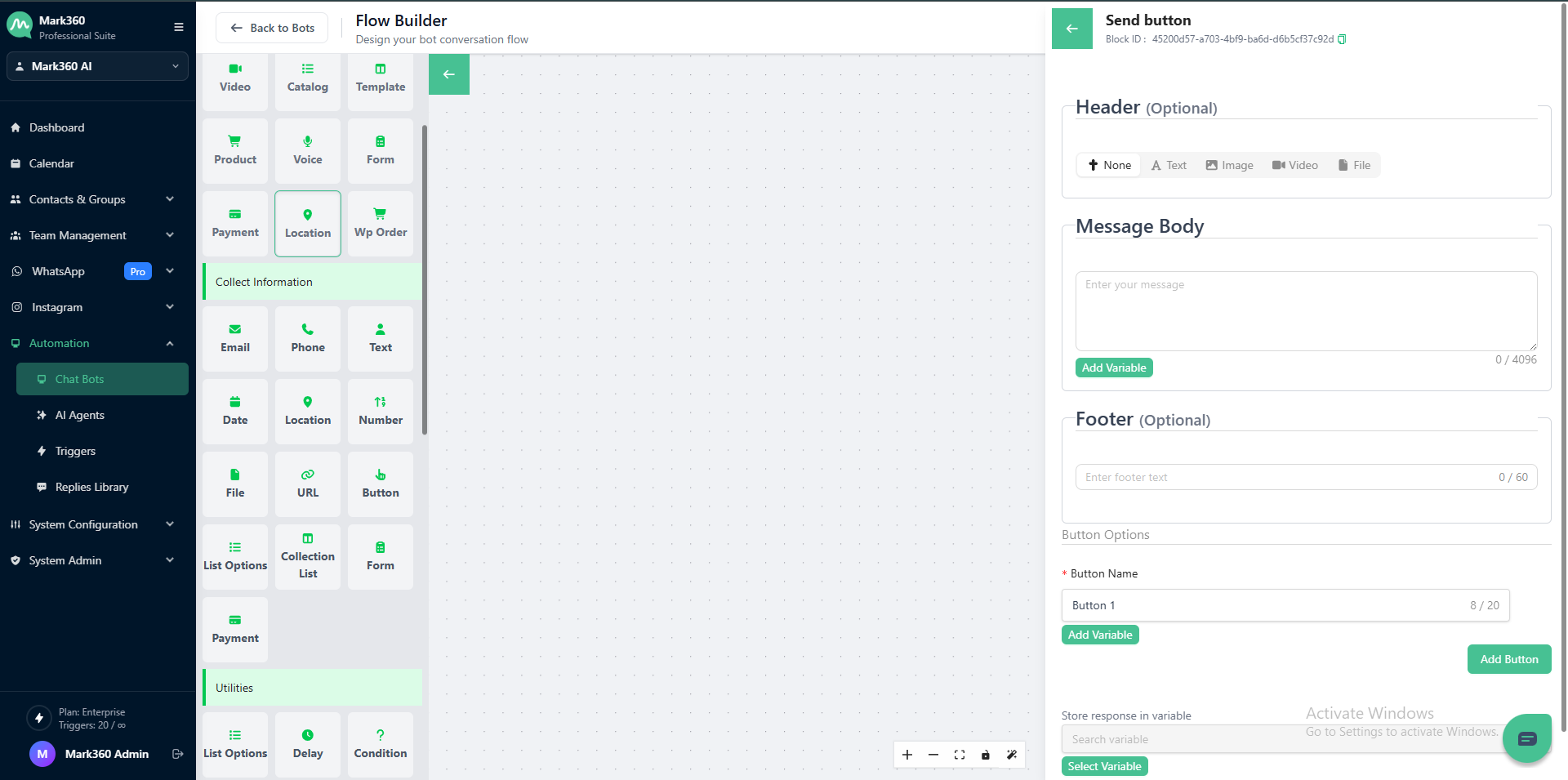
Header Type
You can make your message visually appealing by adding a Header in one of the following formats:
-
🖼️ Image (max size: 5MB)
-
🎬 Video (max size: 16MB)
-
📄 Document (max size: 100MB)
-
✏️ Text (short header text)
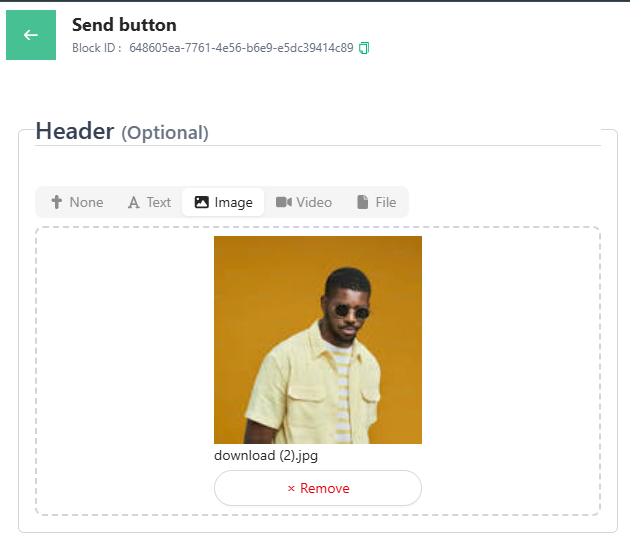
Adding a media file or a catchy headline grabs attention and makes your bot conversation feel lively and personalized.
Message Body
This is where you describe your product, offer, or message clearly and engagingly.
💬 Example Question:
Purple & Crème Patchwork Cardigan at a unique price of INR 1299!
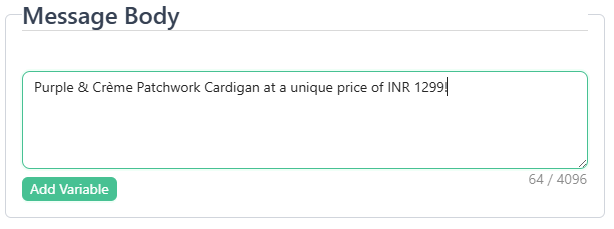
Be creative with your message to help users make faster purchase decisions.
Footer
The Footer allows you to add supporting or promotional text at the bottom of your message.
💡 Example Footer Text:
Hurry, size up on style & set #stylegoals!
Hurry, shop these fast-sellers now!

You can customize the footer as per your campaign or promotion needs.
Button Options
You can add a maximum of 3 buttons.
Store Response in Variable
Store your users’ selected options in a variable for easy access later in the workflow.
For example: {{variable.user_selection}}

If you are creating a new variable for the first time, simply type the variable name in the box — you’ll be prompted to Create "Variable Name", just like in the screenshot example.
Saving Your Configuration
Once all the required fields (Header, Question Text, Footer, and Buttons) are set, click Add to add the Collect Button Option to your bot flow.
In Mark360 Bot Interface: